


User Guide for WorkSafe Box
Version: 1.0
Date: 15/10/2021
USER GUIDE FOR WORKSAFE BOX | 1.0

 1. Document Control
1.1. Version History
Please find the artefacts at the following location.
Date
Version
Author
Description of Change
05/10/2021
0.1
Gayle Stokes
Initial Draft
15/10/2021
1.0
Gayle Stokes
Final Version
1.2. Reviewers
Name
Role
Date
Comments
Anneliese Mills
Project Manager
Pam Hough
Senior Business
Analyst
Lee Shelton
Test Manager
Gauvrav Patel
Solution Architect
1.3. Artefact Location
Please find the artefacts at the following location.
Artefact
Location
Document
Page
1 of
10
USER GUIDE FOR WORKSAFE BOX | 1.0
link to page 2 link to page 2 link to page 2 link to page 2 link to page 3 link to page 3 link to page 4 link to page 4 link to page 4 link to page 7 link to page 7 link to page 9

 Contents
1.
Document Control ............................................................................................................ 1
1.1.
Version History ............................................................................................................... 1
1.2.
Reviewers ...................................................................................................................... 1
1.3.
Artefact Location ............................................................................................................. 1
Contents ........................................................................................................................................ 2
2.
Scope of this Guide .......................................................................................................... 3
3.
Getting Set up for WorkSafe Box ..................................................................................... 3
3.1.
Accepting the invitation ................................................................................................... 3
4.
Collaborating with WorkSafe Box .................................................................................... 6
4.1.
Sharing Information with WorkSafe ................................................................................... 6
4.2.
Retrieving Shared Files .................................................................................................... 8
Contents
1.
Document Control ............................................................................................................ 1
1.1.
Version History ............................................................................................................... 1
1.2.
Reviewers ...................................................................................................................... 1
1.3.
Artefact Location ............................................................................................................. 1
Contents ........................................................................................................................................ 2
2.
Scope of this Guide .......................................................................................................... 3
3.
Getting Set up for WorkSafe Box ..................................................................................... 3
3.1.
Accepting the invitation ................................................................................................... 3
4.
Collaborating with WorkSafe Box .................................................................................... 6
4.1.
Sharing Information with WorkSafe ................................................................................... 6
4.2.
Retrieving Shared Files .................................................................................................... 8
Page
2 of
10
USER GUIDE FOR WORKSAFE BOX | 1.0



 2. Scope of this Guide
WorkSafe Box is used for sharing sensitive and large files securely with both internal and external
stakeholders. When you are invited to share or collaborate on a file or folder in WorkSafe Box,
you will receive an automated email with a link inviting you to collaborate.
Note: The first time you connect with WorkSafe Box you will need to set up an account and
password.
3. Getting Set up for WorkSafe Box
When you are invited to share information with WorkSafe you will receive an automated email:
3.1. Accepting the invitation
If you are connecting with WorkSafe Box service for the first time, follow the steps below to set up
your account. Otherwise, you can go to
Section 4. Sharing Folders and Files
1. Click on
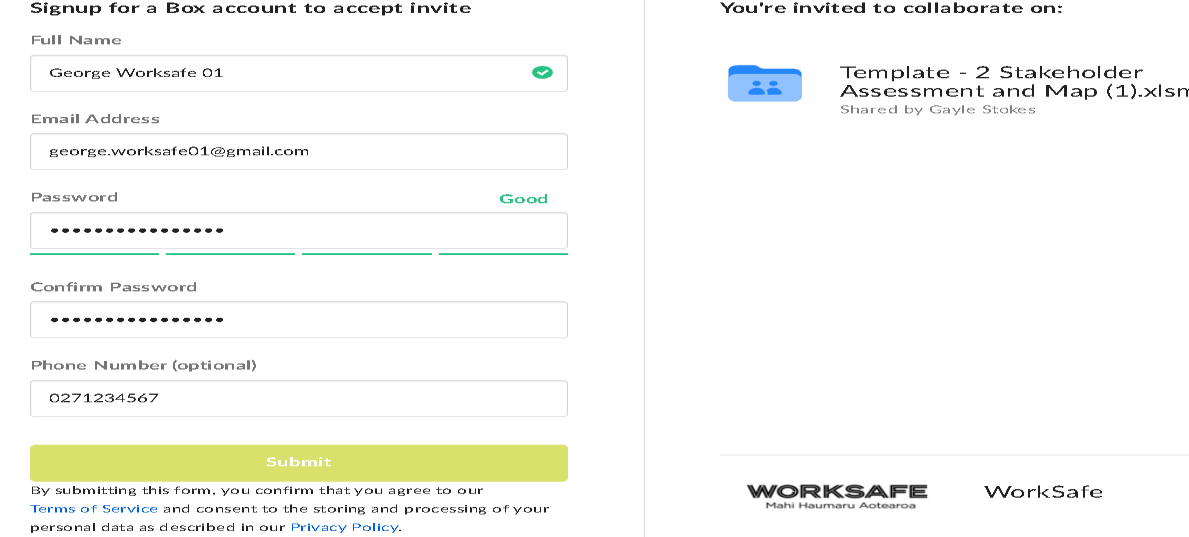
Accept Invite. You will be asked to sign up for a Box account to be able to accept
your invite:
Page
3 of
10
USER GUIDE FOR WORKSAFE BOX | 1.0




2. To create your account, enter your name and password (must be 8 characters, and include
at least 2 numeric and 1 symbol)
3. Type your password in again to confirm and click
Submit
Note: The email address field will already be populated
4. You will receive a message from Box advising a confirmation email has been sent:
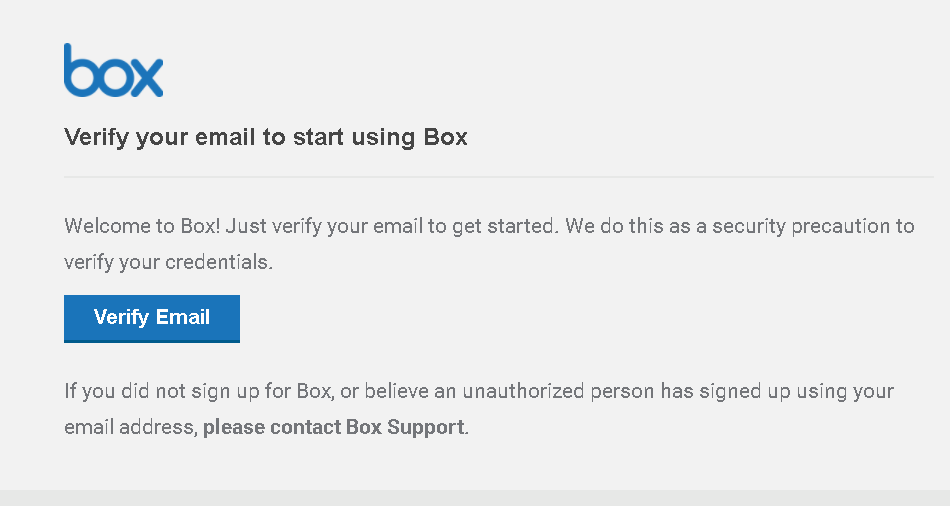
5. Check your email in box and you will see a new email in your list asking you to complete
your Box signup
6. Open the email and click on the Verify Email button:
You will be presented with a Welcome to Box screen:
Page
4 of
10
USER GUIDE FOR WORKSAFE BOX | 1.0


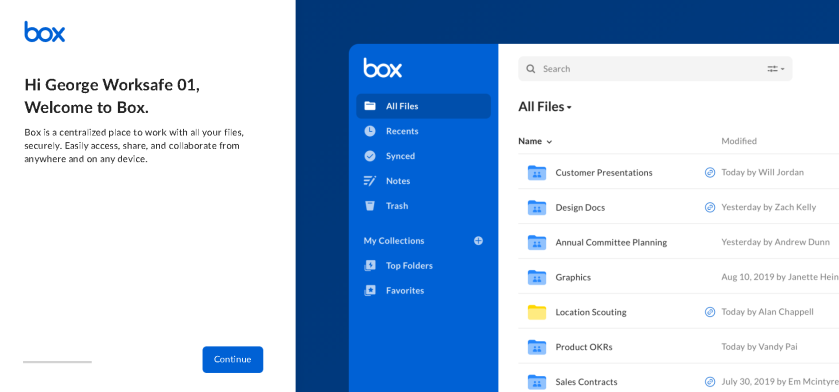
7. Click the
Continue button to work your way through the learning screens
Note: For further assistance go to
The Basics of Box – Box Support. This is where you will
find the latest information from Box.
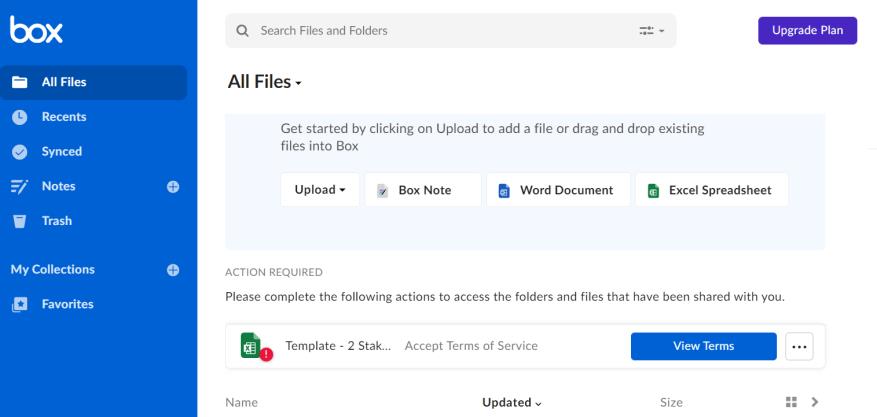
On completion you will be presented with an Action required notice on the
All Files screen:
8. Click on the
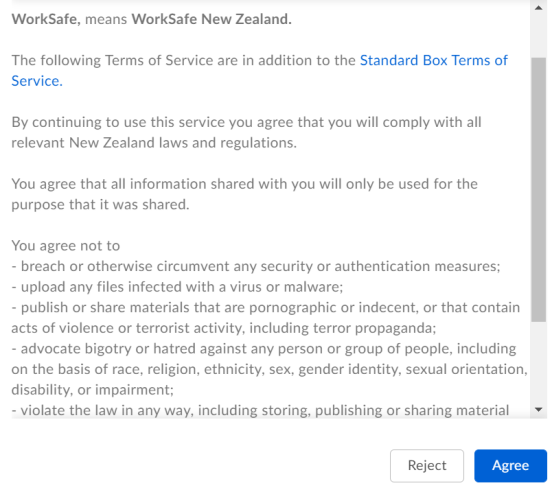
View Terms button, the WorkSafe Terms of Service will be displayed:
9. Review the Terms and click the
Agree button to proceed. You are now ready to collaborate
with WorkSafe.
Page
5 of
10
USER GUIDE FOR WORKSAFE BOX | 1.0


 4. Collaborating with WorkSafe Box
There are two ways in which you may be sharing information with WorkSafe:
1. You may have received a request from WorkSafe to provide certain information or
documents, or
2. You may have requested WorkSafe to share certain information or documents with you.
4.1. Sharing Information with WorkSafe
In this scenario you will have received an invitation from WorkSafe Box to provide certain
information to WorkSafe.
1. Login in to WorkSafe Box
https://worksafe.app.box.com/ and navigate to All Files>Your folder
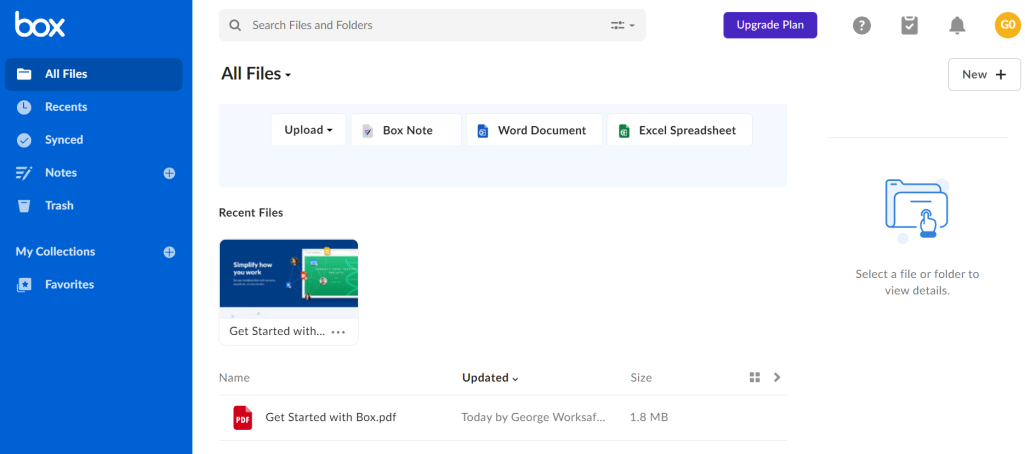
list (see Section 3, Steps 1 – 9 above). The
All Files screen will be displayed:
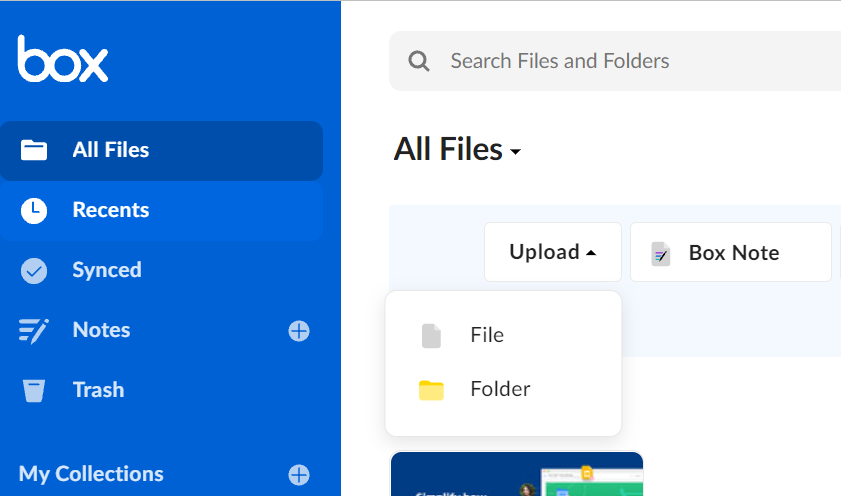
2. To start uploading your file for sharing Click on the
Upload button and select File:
3. Navigate to your desktop to select and upload your file. A banner across the bottom of the
screen will advise the upload process has started and the on completion the file will be
listed in the All Files screen:
Page
6 of
10
USER GUIDE FOR WORKSAFE BOX | 1.0


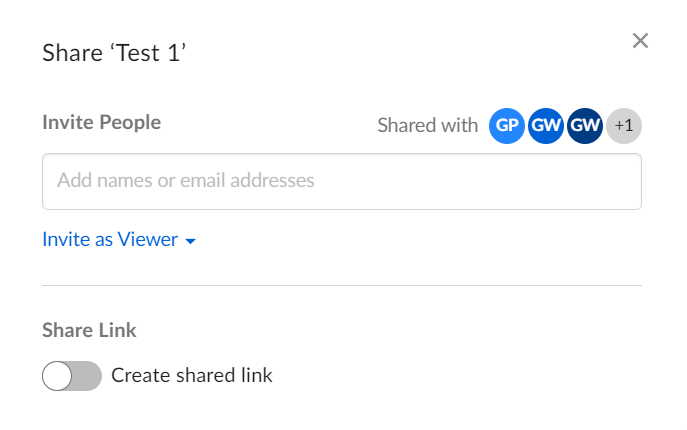
4. Hover over the file and select the Share button. A pop up screen will appear:
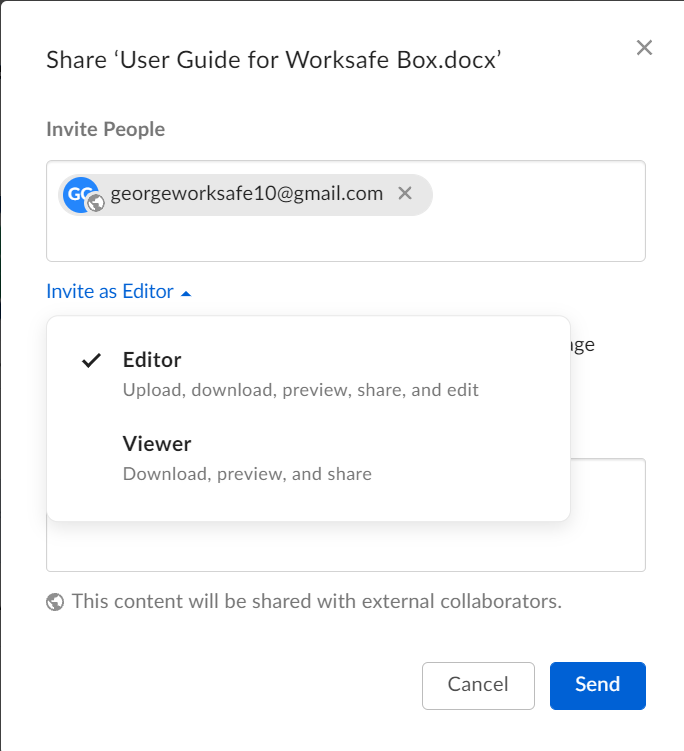
5. Enter the email address of the sharing recipient in the
Invite People field and then click on
the
Invite as Viewer option to set their permissions level from the drop down list:
Page
7 of
10
USER GUIDE FOR WORKSAFE BOX | 1.0


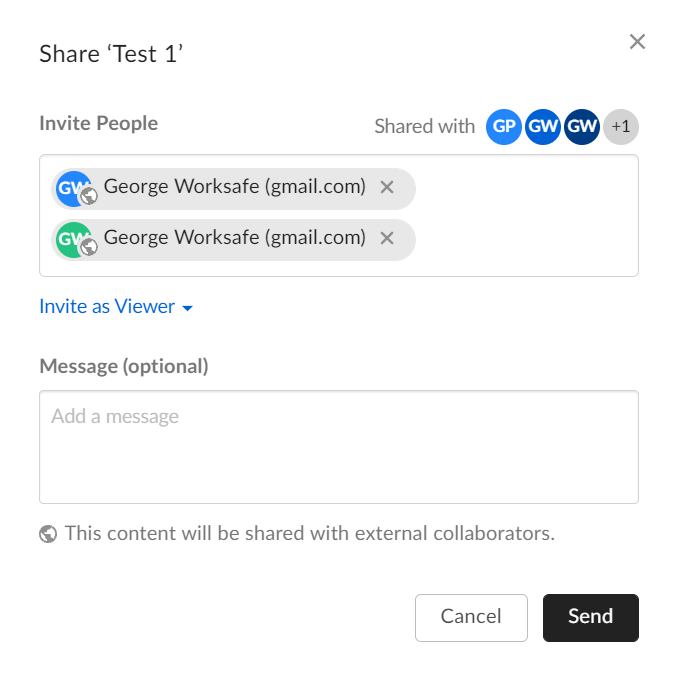
 Note:
Note: You can enter multiple email addresses at once by simply pushing return as you
enter them.
6. Click the
Send button:
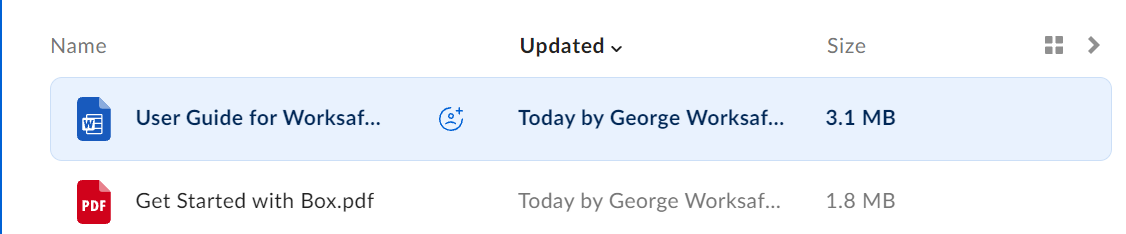
An email will be sent notifying the recipient a file has been sent to them. You will be
returned to the All Files screen and a confirmation pop up message will briefly be
displayed. The file will be marked in your folder list with the collaborator symbol.
7. Click your initials in the top right hand corner to log out of Box.
4.2. Retrieving Shared Files
In this scenario WorkSafe will have provided you information.
1. Login in to WorkSafe B
ox https://worksafe.app.box.com/ and navigate to All Files>Your
folder list (see Section 3, Steps 1 – 9 above). The
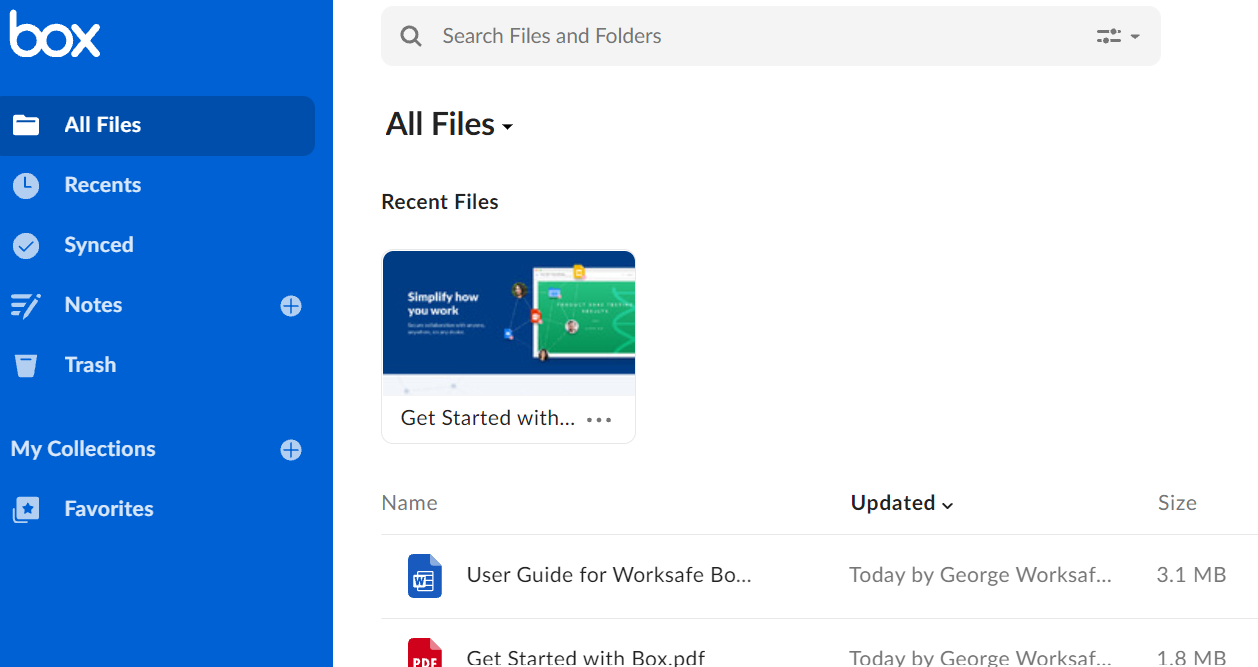
All Files screen will be displayed with the
file or folder which has been shared with you appearing in the list:
Page
8 of
10
USER GUIDE FOR WORKSAFE BOX | 1.0


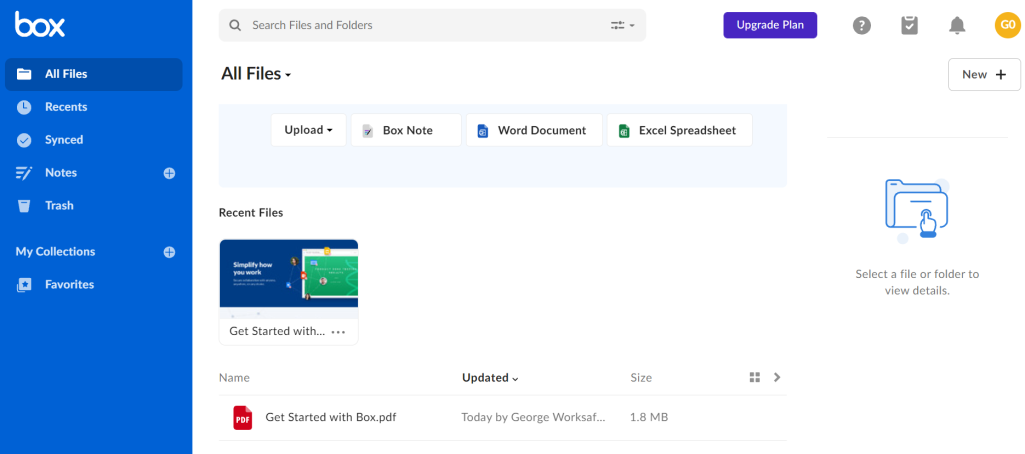
2. Depending on the level of access you have been given you can either click on the file to open it
for review or you can download it for further action. To download the file, click on the Download
button in the top right hand corner of your screen.
Page
9 of
10
USER GUIDE FOR WORKSAFE BOX | 1.0
